
How to Remember What You Ordered at Restaurants
Write down the exact dish, where you ate it, and one decision for next time. A photo is optional. The useful part is being able to answer “which one should I order again?” when you return.
A meal note you can use at the table
Use one entry per dish when two plates deserve different verdicts. The restaurant can go in Notes, because the current Dishrated browser form has a Dish Name field but no separate restaurant field. You can also add the restaurant to Helpful tags for entry context, but the current meal cards show Notes, not tags. These are fictional entries, not saved meals or recommendations:
One to order again
Dish Name: Spicy miso ramen
Helpful tags: ramen, dinner, Example Cafe
Occasion: Dinner
Notes: Example Cafe · rich broth, springy noodles; pork a little dry. Reorder with extra chili, perhaps a different topping.
Personal inputs: Taste 80/100, Health 60/100, Cost Per Person $18, Time 30 minutes. These example values are invented; the app calculates the combined score from the fields you choose.
One to skip next time
Dish Name: Fried dumplings
Helpful tags: dumplings, dinner, Example Cafe
Occasion: Dinner
Notes: Example Cafe · filling was good; wrapper too thick for me. Next time, choose another starter.
Personal inputs: Taste 40/100, Health 50/100, Cost Per Person $9, Time 20 minutes. Keep this as a separate dish so the ramen's rating does not erase a useful warning to your future self.
Dishrated's browser app accepts a photo, dish name, optional tags, Health and Taste inputs from 0 to 100, Time in minutes, Cost Per Person, Occasion, and Notes. It may suggest some fields from the dish name or tags; inspect and edit those suggestions before saving. A photo is helpful when the menu name is vague, but a specific note works without one. The personal rating scale guide helps you keep your Taste number consistent.
How to save the memory in the browser
- Open Dishrated in your browser, choose Try without an account for a local guest entry, and give each dish a specific name. The form uses that name to identify a meal, so distinct names also help avoid the duplicate-name prompt.
- Add a photo if you have one. Complete Helpful tags and Notes, including the restaurant and next-order decision, before finalizing the number fields. Name, tags and notes can trigger a short delayed suggestion that fills Health, Cost and Time. Wait for the Suggested meal card to update, or use Score now, then choose the Occasion and set the values you actually want.
- Immediately before Add Meal, recheck Health, Taste, Time, Cost Per Person, Occasion, and the displayed Dishrated Score. If a suggestion changes a field after you set it, correct that field and check the score again. Save only when the visible values match your decision. Repeat for another dish only when its verdict differs.
In the browser app, the combined score weights Taste 40%, Health 40%, and a calculated Cost score 20%. Time is saved separately and does not contribute to that number. There is no effort score. The Health field is a personal input or rough suggestion, not a measured nutrient or medical result.
Find it before you order again
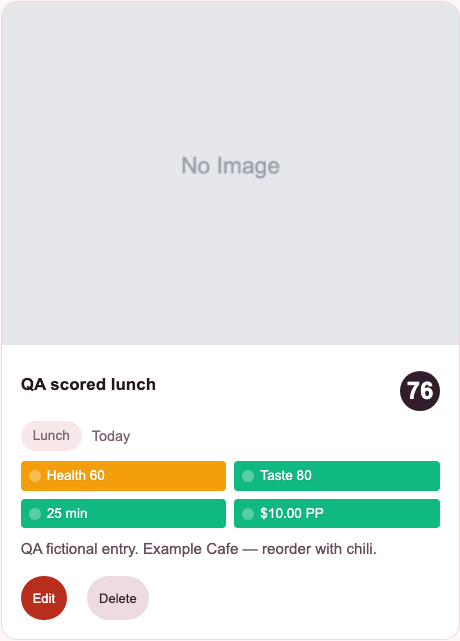
On a later visit, reopen the browser app and choose Try without an account again to load local guest entries from this browser. Open Your Meals and choose All or the relevant Occasion filter, such as Dinner. Scan the dish names, scores and notes on the meal cards, then open a card to inspect its details. In the fictional pair above, “Spicy miso ramen” carries the reminder to ask for extra chili; “Fried dumplings” carries the reason to try a different starter. The app does not need to decide for you: the recorded reason tells you which choice fits today.
There is no dedicated restaurant-name filter in this browser view. If you visit many places, use a consistent restaurant label in Notes, which appears on meal cards, and scan your saved cards by Occasion. Do not rely on the separate people-search box to find your meals. If the menu changes, date or revise your note after the next visit instead of treating an old entry as a current menu listing.
A copyable worksheet for any notes app
You can use this on paper or in a notes app without creating an account. It mirrors the useful parts of the browser form without pretending a paper note calculates the app score:
Restaurant / date: ______
Exact dish: ______
Occasion: ______
Taste, in my words: ______
What stood out: ______
Cost and time, if relevant: ______
Next order: Repeat / repeat with a change / choose something else
Photo, if helpful: optional
If you want to use it in Dishrated, copy the exact dish to Dish Name and place the restaurant, detail and next-order decision in Notes. Add optional tags for context, while keeping the restaurant and return decision in Notes where you can see them on a meal card. The browser's Guest mode stores entries in this browser's local storage. They can survive ordinary reloads, but clearing browser data can remove them; Guest mode does not sync across devices, and browser and iPhone histories are separate.
Questions before your next visit
Do I have to log every part of a meal?
No. Save the dishes whose names or verdicts you expect to forget. Two separate entries help when you would repeat one plate but avoid the other.
Do I need a photo?
No. A dish name and specific note can be enough. Add a photo when it helps distinguish two similar orders.
Can I publish this as a restaurant review?
The browser meal entry is your personal record. If you want to write a public review elsewhere, describe your direct experience and the date separately; saving a Dishrated entry does not publish one.
Save your next order decision
Name the dish, record one reason, and give future you a useful note.
Open the App